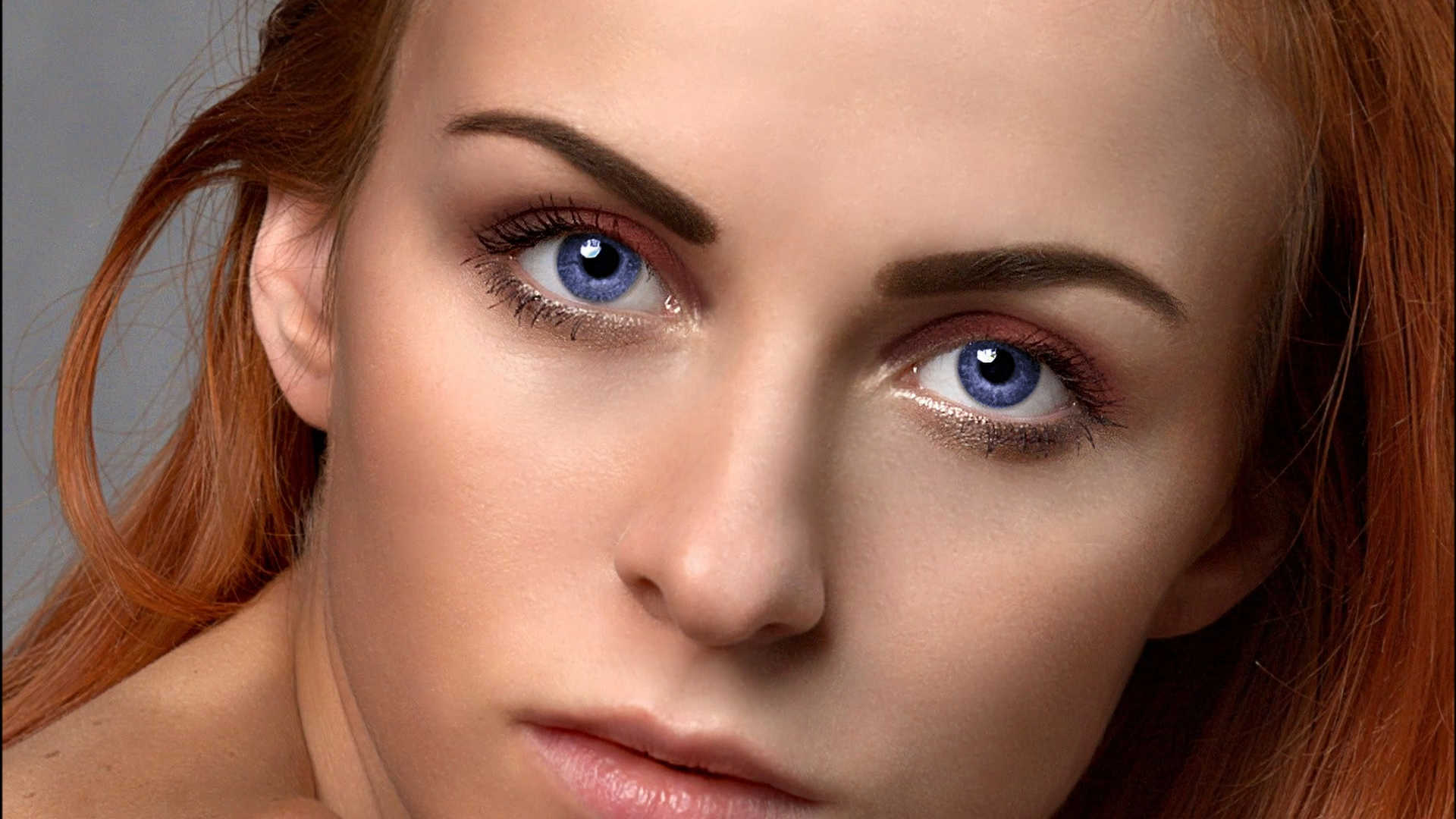
Recolour & Enhance Eyes with Affinity Photo
Part 4
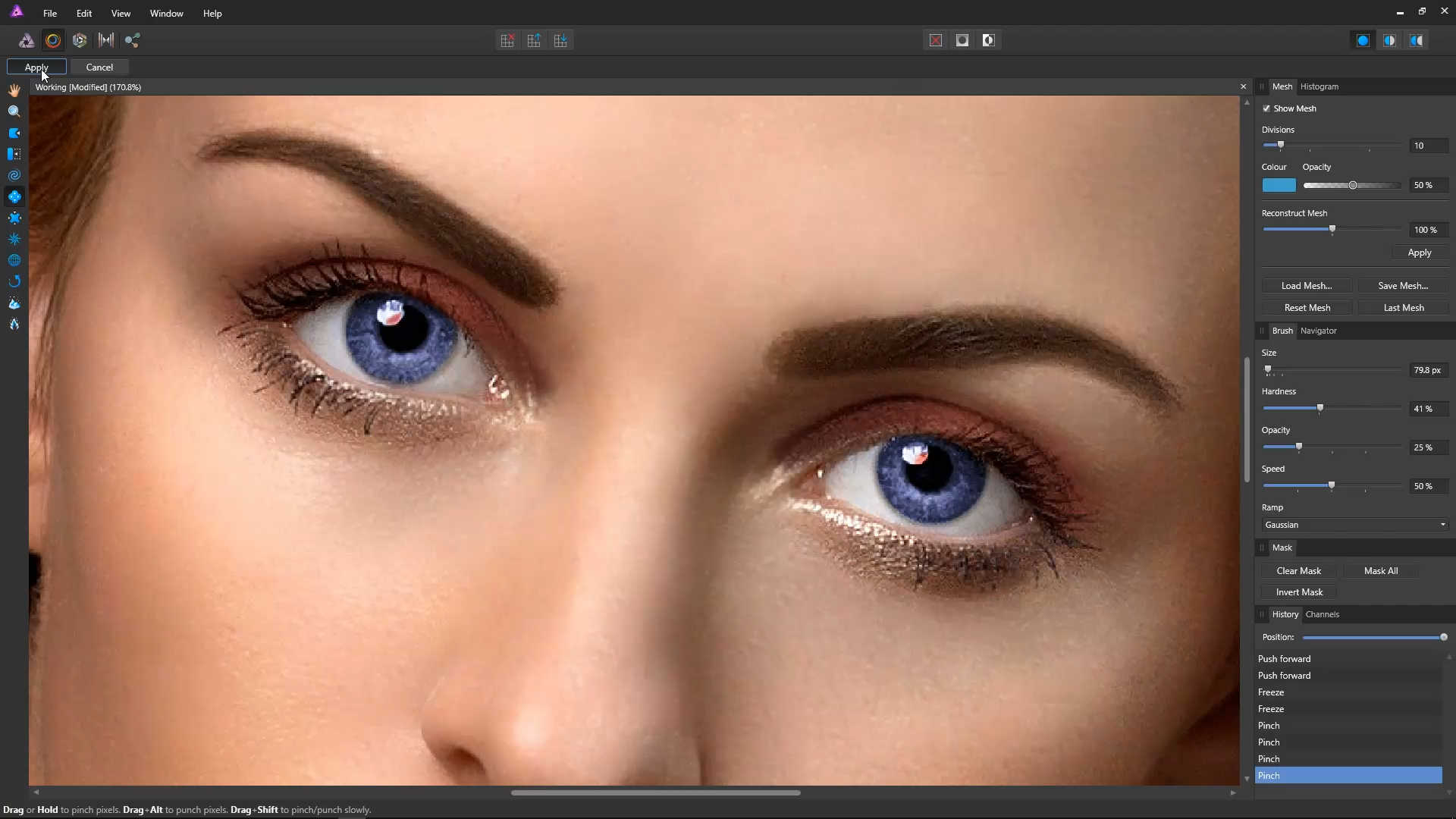
Click the Liquify Pinch icon.
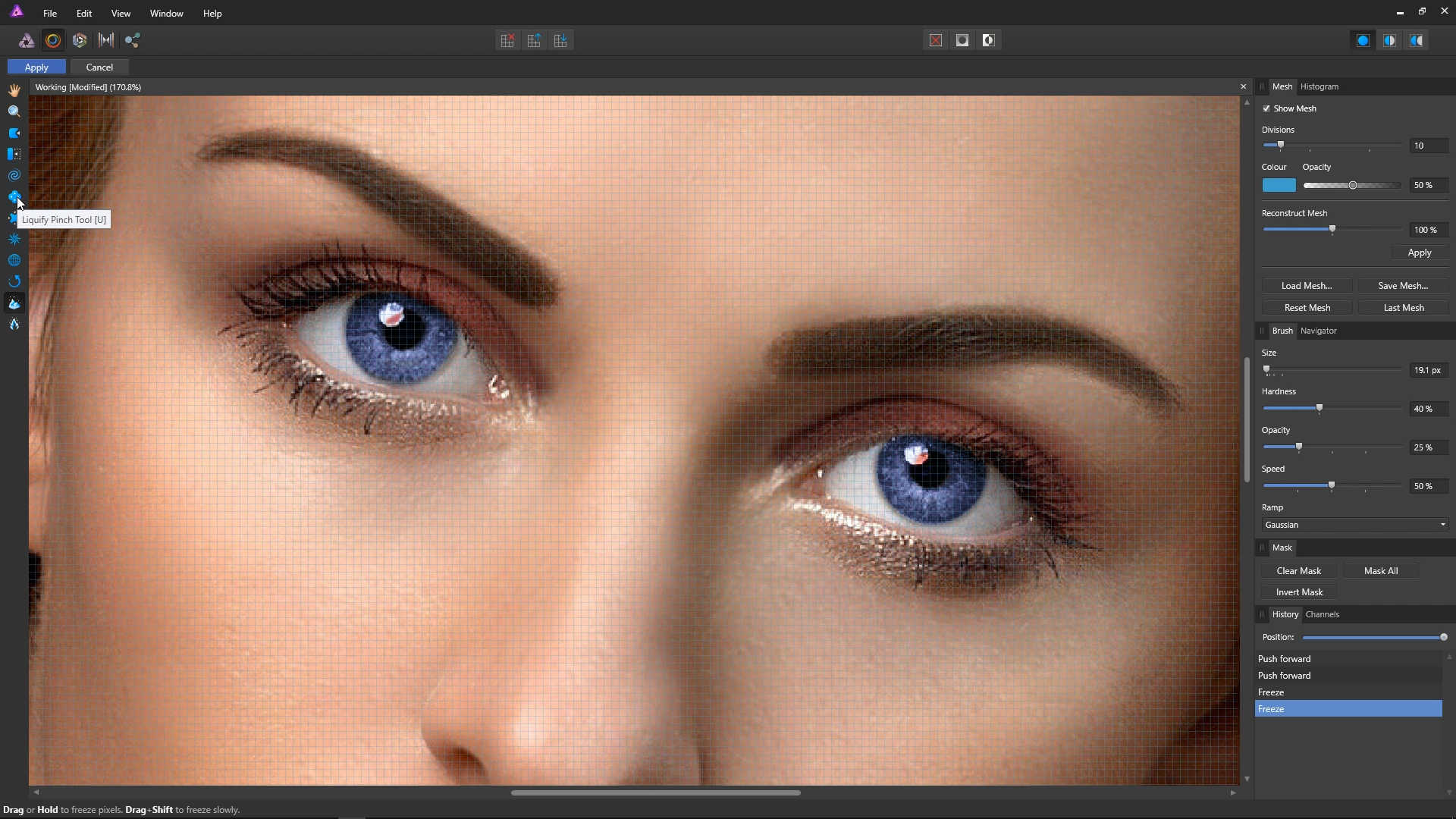
Make the brush size about the same size as the iris.
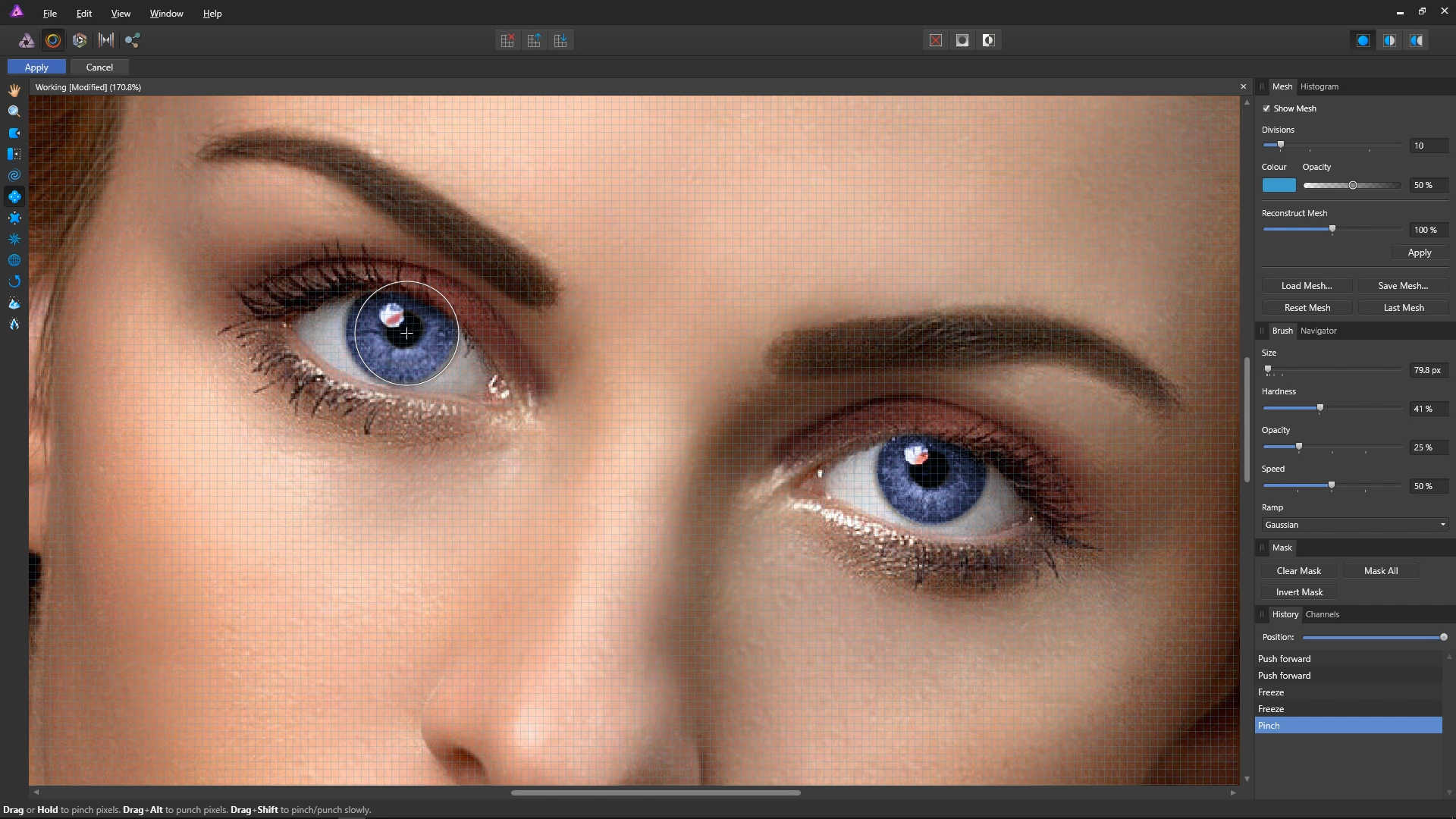
Now, move the mouse pointer to the center of the eye pupil, hold down the left mouse buttton, and rotate around just very slightly (a few pixels) until the pupil is the size you like. Repeat this process for the other eye.

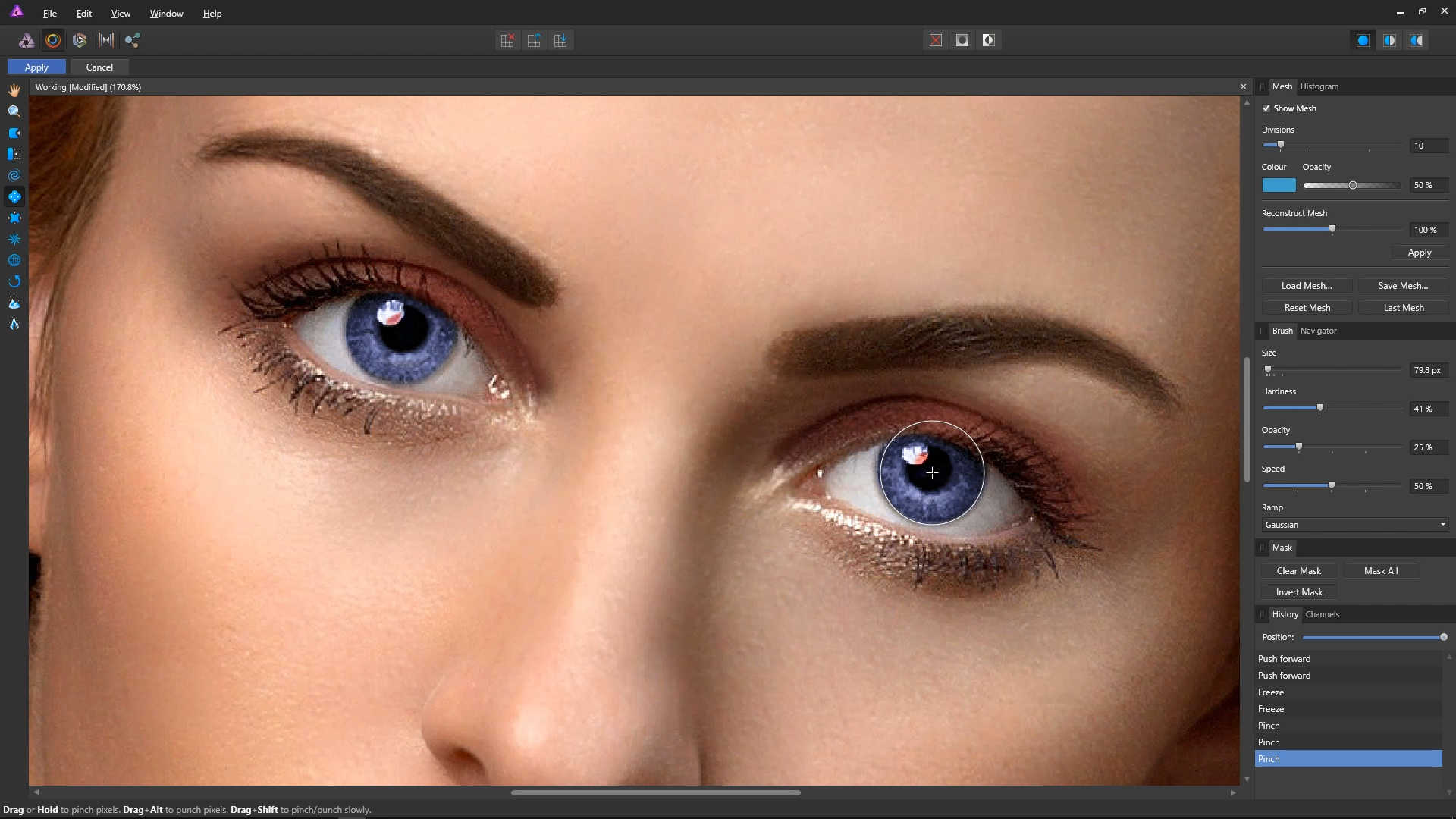
At the top left, click the Apply button.
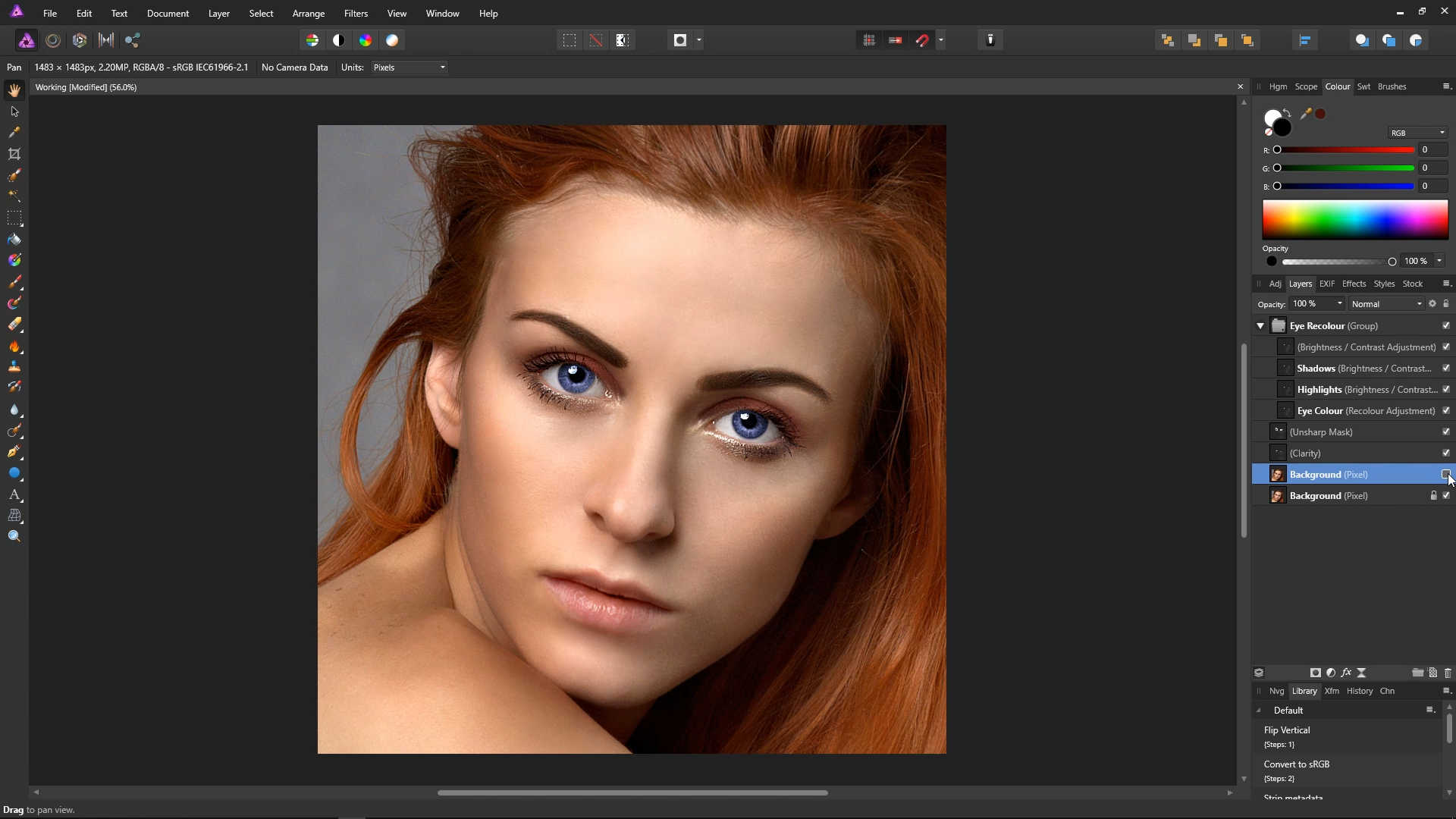
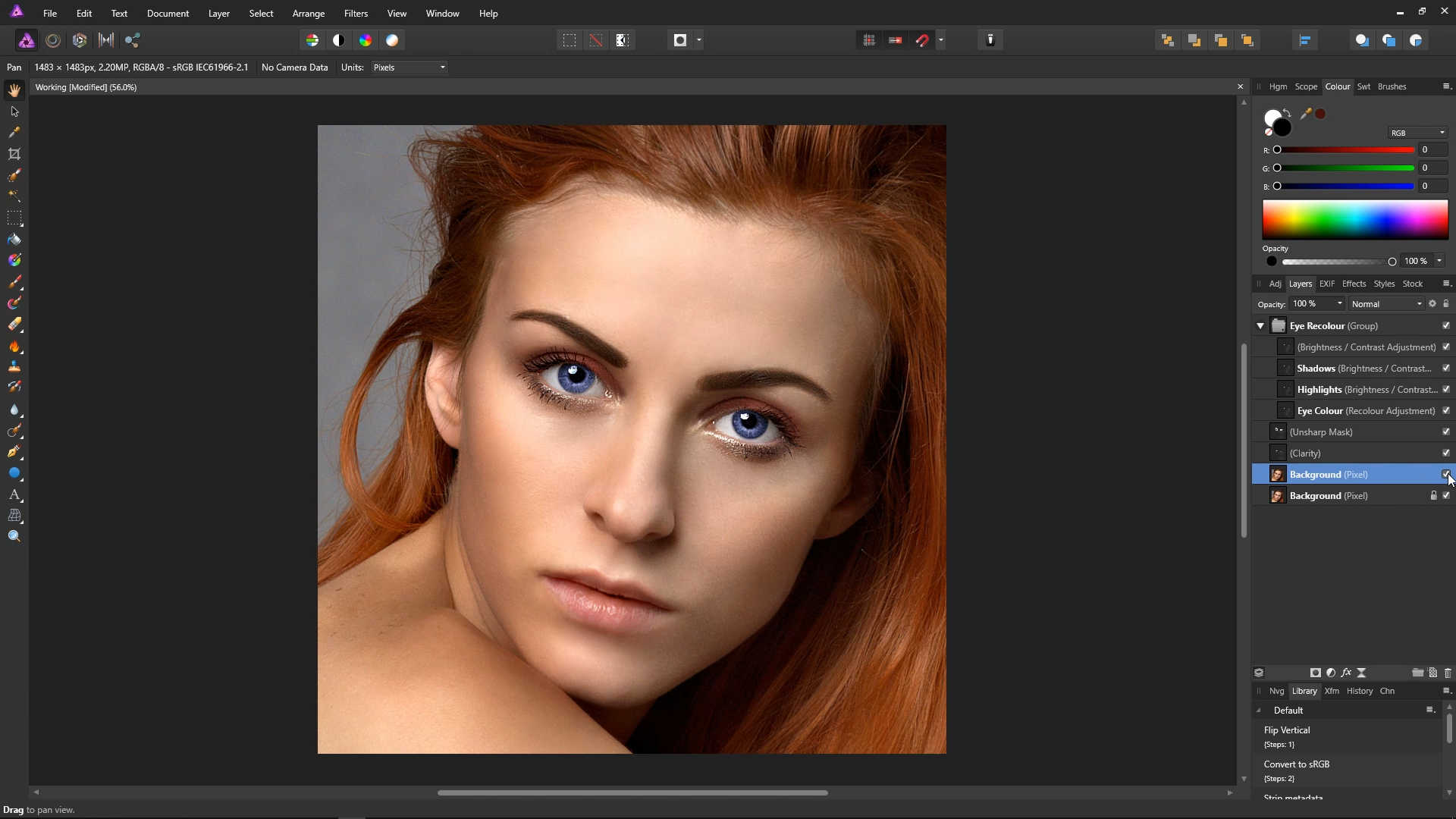
Let's take a look at what we've done. Press Ctrl + 0 to go to the default zoom level. Then you can tick/untick the new layer to see how our photo looks before and after the adjustment.
Before:
After:
That concludes this tutorial, we have recoloured the eyes, added some clarity, performed some sharpening around the eyelashes/eyebrows, and made the pupils larger.
Let's take a quick look at how the image looks before and after all of our adjustments.
Final Before:
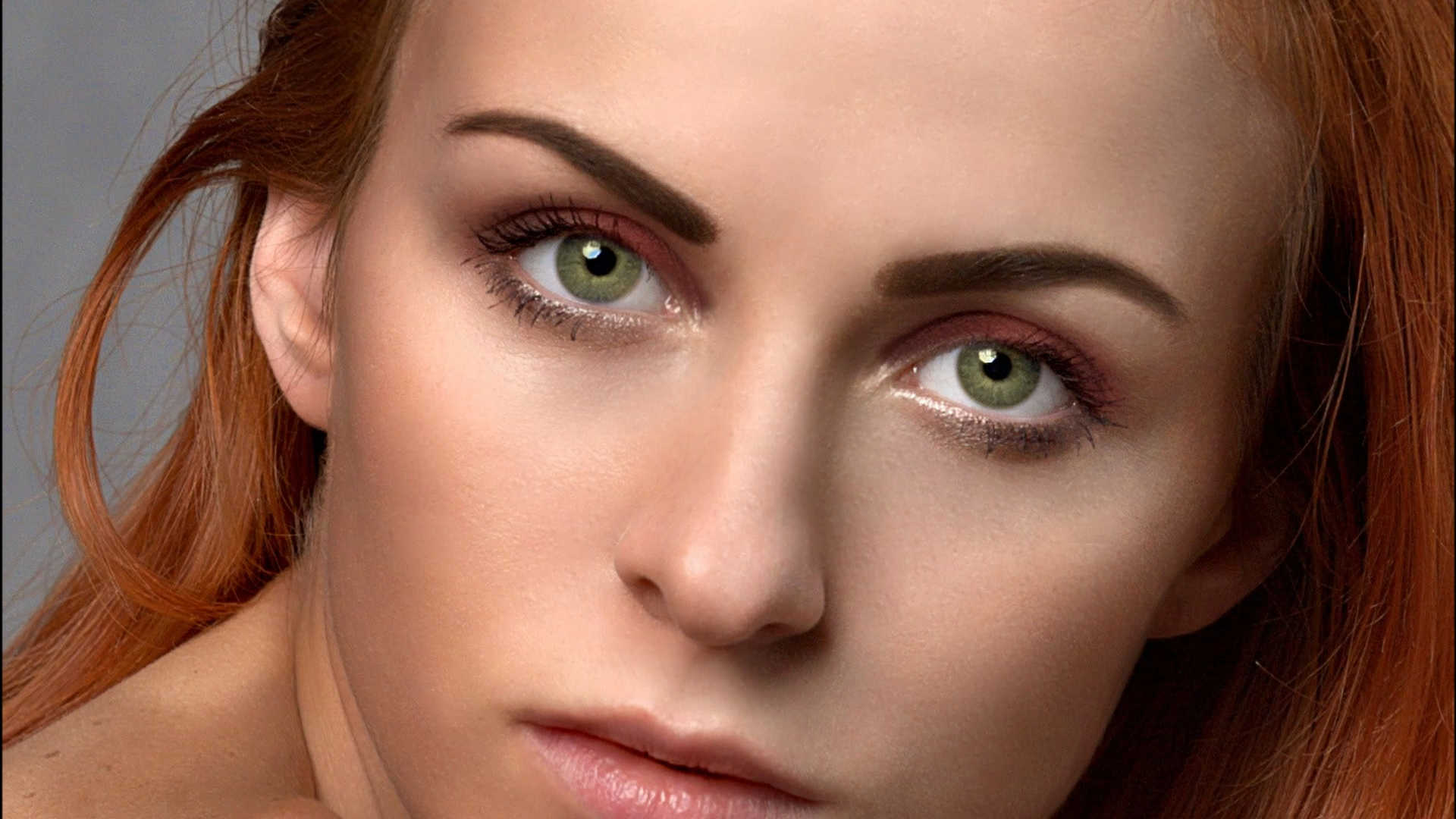
Final After: